🔌 1. The Port Is a Shape, Not a Charging Promise
USB-C on a 510 thread battery tells you almost nothing about how the device charges. The port describes a physical connector — the small oval opening that accepts a reversible plug — not the electronics behind it. Two batteries can share the exact same USB-C port and behave completely differently once a cable is plugged in.
This distinction matters because a lot of buying confusion starts here. People assume “USB-C” is a single standard, the way a AA battery is a single standard. It isn’t. USB-C is a connector shape that multiple different charging protocols can use. A battery’s actual charging behavior — how fast it accepts current, whether it negotiates voltage with the source, how it reports its status — comes from a small management circuit inside the battery housing, not from the port itself.
🔎 1.1 Why This Confuses People at the Point of Sale
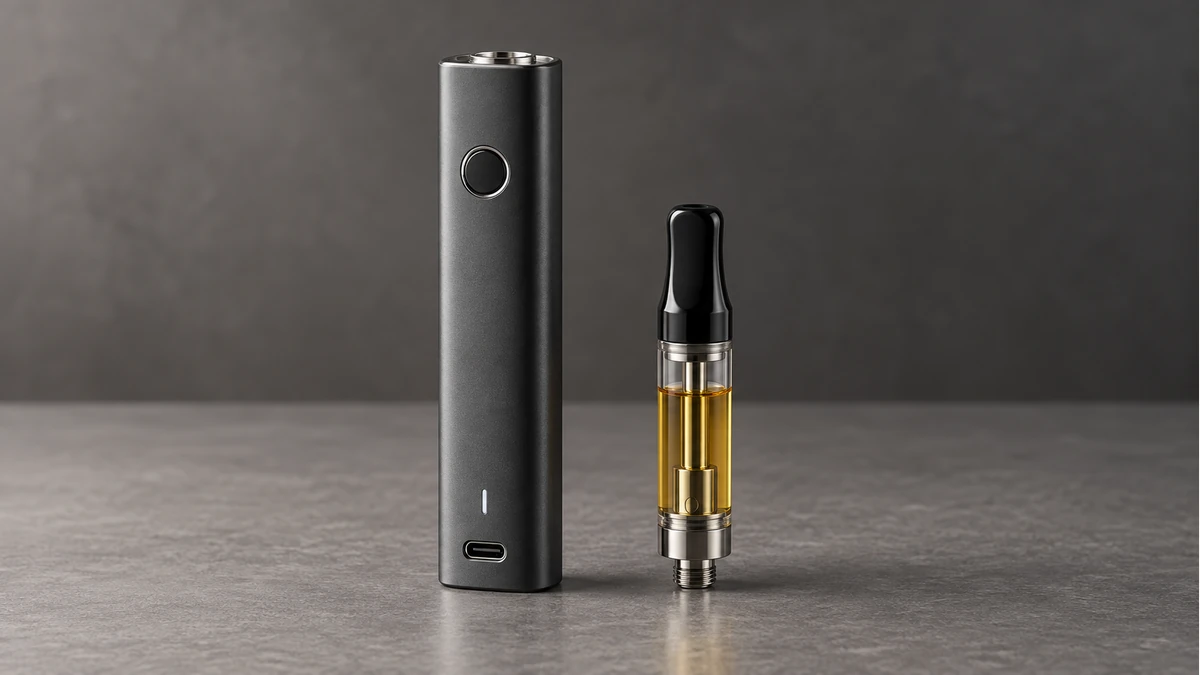
Retail listings often lead with “USB-C charging” as if that phrase settles every question about speed or compatibility. It settles exactly one thing: the plug shape. It does not tell you the maximum current the internal circuit will accept, whether the battery includes overcharge protection, or how it responds to a power source that offers more voltage than the battery expects.
Reddit threads on this topic show a recurring pattern: someone plugs a 510 battery into a fast-charging wall adapter or a laptop’s USB-C port, expects a proportional speed increase, and instead gets the same charge time as before — or, less commonly, a battery that reports an error and refuses to charge at all. Both outcomes trace back to the same root cause. The battery’s internal circuit decides what it will accept, and the port shape has no say in that decision.
🧭 2. What Actually Controls the Charge
Inside the battery housing sits a small printed circuit board responsible for regulating incoming current, monitoring cell voltage, and cutting off power once the cell reaches full charge. This board is the actual “charging system” people mean when they ask whether a battery charges quickly or safely. USB-C is simply the doorway that current passes through to reach it.
🔎 2.1 Fixed-Current Circuits vs. Negotiating Circuits
Most 510 thread batteries use a fixed-current charging circuit. It accepts a set amount of current — commonly in a narrow, low range suited to the small cell inside — regardless of what the power source is capable of delivering. Plugging this kind of battery into a higher-output charger does not speed anything up, because the circuit itself sets the ceiling.
A smaller number of batteries include negotiating circuits that communicate with a compatible power source to request a specific voltage or current level. This is closer to what happens with phone charging. Without documentation confirming which type a given battery uses, there is no way to tell from the outside — the port looks identical either way.
🧠 2.2 Why “It Still Works” Doesn’t Mean “It’s Optimal”
A fixed-current battery plugged into a high-output charger will usually still charge. The circuit simply draws what it’s designed to draw and ignores the rest. This is generally a safe outcome, not a dangerous one, but it explains why people report no speed difference after switching to a “faster” charger or cable. The bottleneck was never the cable.
🔋 3. Cables and Power Sources Matter More Than People Expect
Even with a capable internal circuit, the cable and the power source complete the path current has to travel. A cable that only carries data, or one with thin, undersized conductors, can quietly limit how much current actually reaches the battery — the port fitting the plug does not guarantee the cable inside is built the same way.
🔎 3.1 USB-C-to-USB-C vs. USB-C-to-USB-A
A USB-C-to-USB-C cable connected to a USB-C power source can support the full negotiation process on batteries built to use it. A USB-C-to-USB-A cable, plugged into an older-style USB-A wall block or a computer port, caps the available current at USB-A limits no matter how capable the battery’s own circuit is. This is a common, invisible source of “why is this charging so slowly” confusion — the battery didn’t change, the upstream connection did.
🧠 3.2 Wall Adapters, Power Banks, and Computer Ports Are Not Interchangeable
A wall adapter, a laptop USB-C port, and a portable power bank can all physically accept the same plug while delivering very different current profiles. Laptop ports in particular are often shared with other demanding peripherals and may deliver less consistent current to accessories. If a battery charges unevenly depending on what it’s plugged into, the power source is the first thing worth checking — not the battery itself.
🧩 4. Reading the Indicator Light Correctly
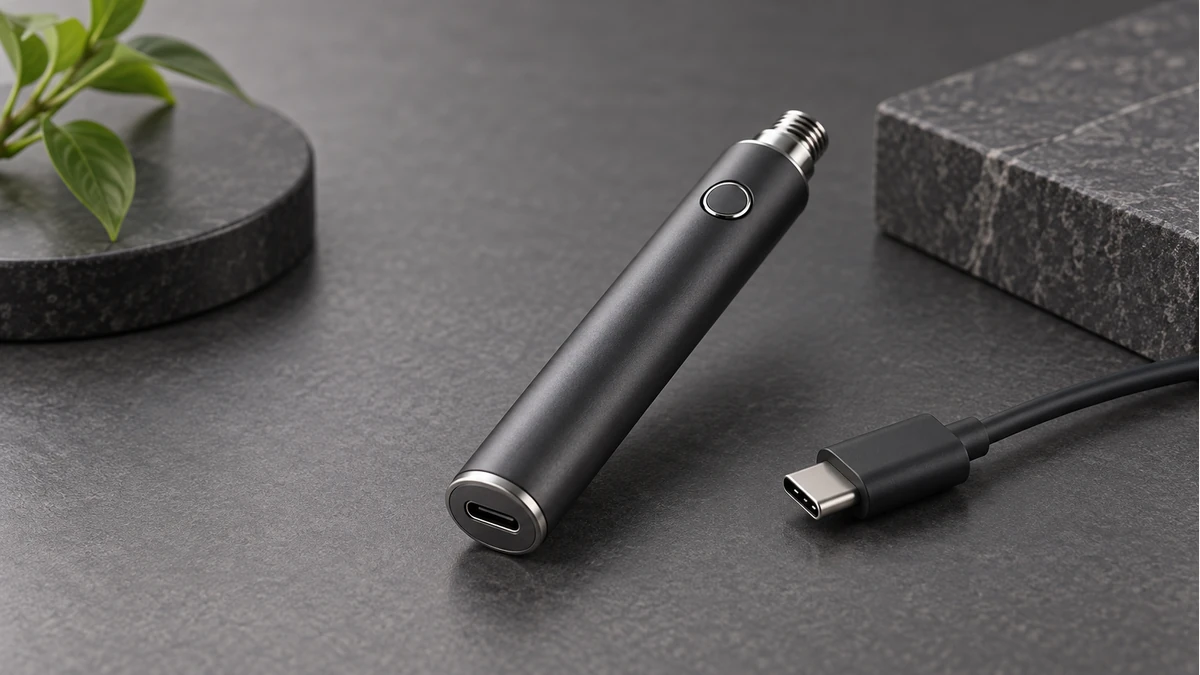
Most 510 batteries communicate status through a single LED near the button or base, and the logic behind its colors and blink patterns is entirely set by the manufacturer’s firmware — there is no universal standard. This is one of the more frequent sources of frustration in troubleshooting discussions, because people transfer assumptions from one device to another that uses a completely different color scheme.
🔎 4.1 Common Patterns and Their Limits
- A steady light during charging that turns off (or changes color) at full charge is the most common pattern, but the specific colors used vary by brand.
- A blinking light while charging often indicates a connection issue — a loose cable, debris in the port, or a charger that isn’t supplying enough current for the circuit to recognize a stable connection.
- A blinking light during use, separate from charging, typically signals a different condition, such as the button being pressed without a cartridge attached or the cell voltage dropping below the circuit’s cutoff threshold.
Because these patterns are firmware-defined, the only reliable reference is documentation specific to that battery model. Guessing based on a previous device’s light behavior is a common cause of unnecessary troubleshooting.
🧠 4.2 When No Light Appears at All
No light on connection can mean several things: the cable is data-only and carries no power, the port has debris blocking contact, the power source isn’t delivering current, or the internal circuit has entered a protective shutdown after deep discharge. Each of these has a different fix, which is why isolating the variable — swapping the cable first, then the power source, then inspecting the port — is more useful than assuming the battery has failed outright.
🧼 5. Connector Wear, Fit, and Cleaning Boundaries
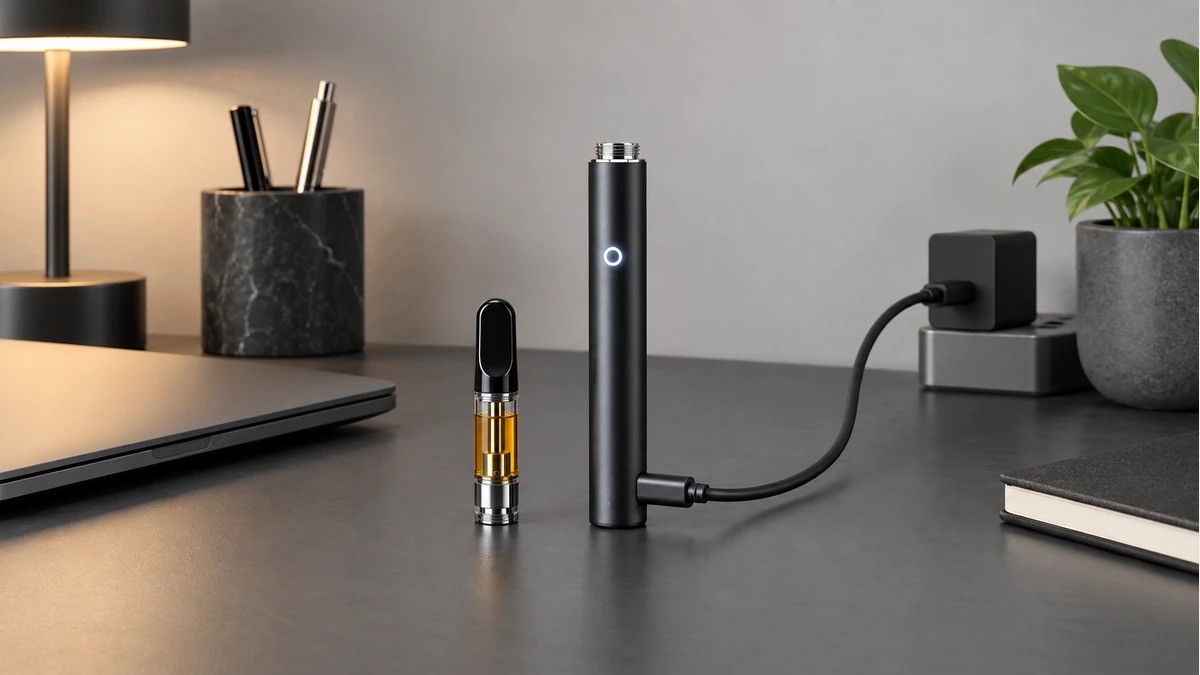
USB-C ports on small devices see more mechanical stress than the connector was originally designed to absorb on larger electronics, mostly because of how frequently the cable gets plugged and unplugged and because the battery itself is handled and carried throughout the day.
🔎 5.1 Signs of Physical Wear
A port that requires the cable to be held at a specific angle to charge, or one where the plug feels loose compared to when the battery was new, is showing early wear. The small metal contacts inside a USB-C port can bend slightly out of position from repeated insertion, side pressure from carrying the battery in a pocket, or a plug being forced in at an angle. This kind of wear tends to develop gradually and is easy to miss until charging becomes inconsistent.
🧠 5.2 What Cleaning Should and Shouldn’t Involve
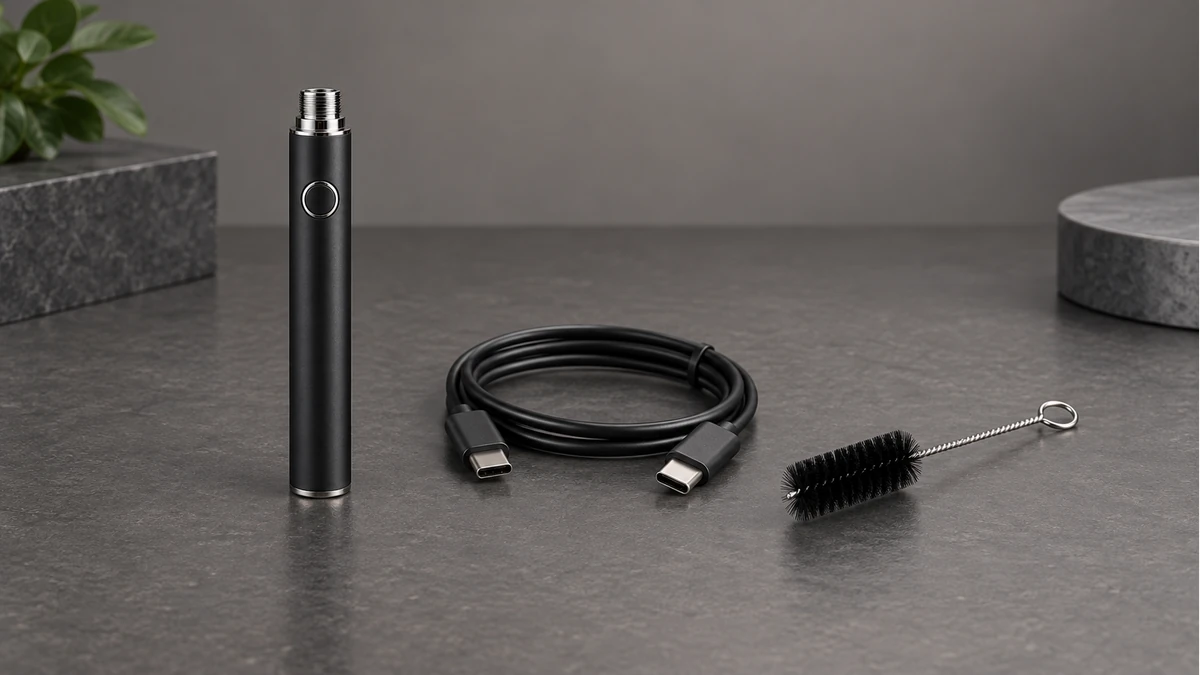
Lint, dust, and residue are the most common causes of poor contact, not electronic failure. A dry, soft brush or a can of compressed air aimed briefly into the port is generally sufficient to clear debris. Liquid cleaners, sharp metal tools, or anything that could bend the internal contacts should be avoided entirely — the contacts are thin and not designed to be pried at, and physical damage from a cleaning attempt is not something firmware or a new cable can fix afterward.
If a port has visible corrosion or a bent contact, that is a hardware condition a cleaning routine cannot resolve, and it is worth treating as a sign the battery’s charging path has been physically compromised rather than continuing to force cable connections into it.
📐 6. Compatibility, Storage, and Troubleshooting Mismatches
A recurring theme in user discussions is confusion over why a battery that charges fine with one cable behaves inconsistently with another, or why a battery stored for weeks won’t power on immediately when plugged back in.
🔎 6.1 Common Mismatch Scenarios
- Slow or stalled charging with a “fast” cable: usually a fixed-current internal circuit paired with an assumption that the cable or charger controls speed.
- Inconsistent charging across different power sources: points to a variable-output source (like a shared laptop port) rather than a battery fault.
- No response after long storage: often the internal circuit’s protective low-voltage cutoff, which requires a period of charging before the device will respond to a button press or airflow.
- Cable that works with a phone but not the battery: some cables are wired for data transfer only and were never intended to carry meaningful charging current.
🧠 6.2 Storage Habits That Reduce Confusion Later
Storing a battery at a partial charge rather than fully depleted reduces the chance of triggering a deep-discharge protective state that delays the next charge cycle. Keeping the battery in a dry environment away from metal objects — coins, keys — that could bridge the port’s contacts also reduces the risk of contact wear or corrosion during storage. Neither habit is a fix for a hardware problem, but both reduce how often ambiguous symptoms show up in the first place.
📏 6.3 When Documentation Is the Only Real Answer
Because charging behavior, indicator logic, and current limits are all set by the manufacturer’s internal circuit design rather than the USB-C standard, the only dependable source for a specific battery’s actual specifications is documentation from that manufacturer. Generic USB-C claims on packaging or listings describe the connector, not the charging system behind it, and treating the two as identical is where most of this confusion originates.
🔍 7. Read USB-C as a Connector, Then Verify the Charger
USB-C describes the reversible shape of the port. It does not tell you the cell capacity, charge current, protection circuit, or which power profiles the device accepts. That distinction explains why two batteries with identical-looking ports can show different indicator behavior on the same cable. The useful evidence is the battery maker’s input specification and the cable supplied for that model.
🔎 7.1 Change One Charging Variable at a Time
If charging does not start, first inspect the port for debris and confirm that the plug seats without force. Next, try the documented cable and power source. Keep the battery body, cable and power source constant while changing only one item. A test that swaps all three at once cannot show whether the problem was the port, the cable or the source.
🧠 7.2 Indicator Lights Need a Model-Specific Key
A steady light, blinking light or dark screen can mean different things across models. Do not infer a universal code from the connector type. Record the light pattern, how long it appears and whether it changes when the cartridge is removed, then compare that behavior with the manual for the exact battery.
⚙️ 8. Practical Takeaway
Before assuming a cable, charger, or battery is defective, separate the three layers involved: the port shape, the cable’s actual current-carrying capability, and the internal circuit’s own charging logic. Testing one variable at a time — a different cable first, then a different power source, then a visual check of the port for debris or wear — will identify the actual cause far faster than replacing parts based on guesswork. A USB-C port guarantees a physical fit; everything about how the battery charges, signals its status, and ages over time is decided by the hardware sitting behind that port.