A touch screen vape can look normal and still ignore a tap. It can also show a lock symbol while another control remains available, or display lines while the menu continues to move. Those are different observations. Treating all of them as a broken screen makes it harder to explain what happened and easier to mistake a menu state for a repairable fault.
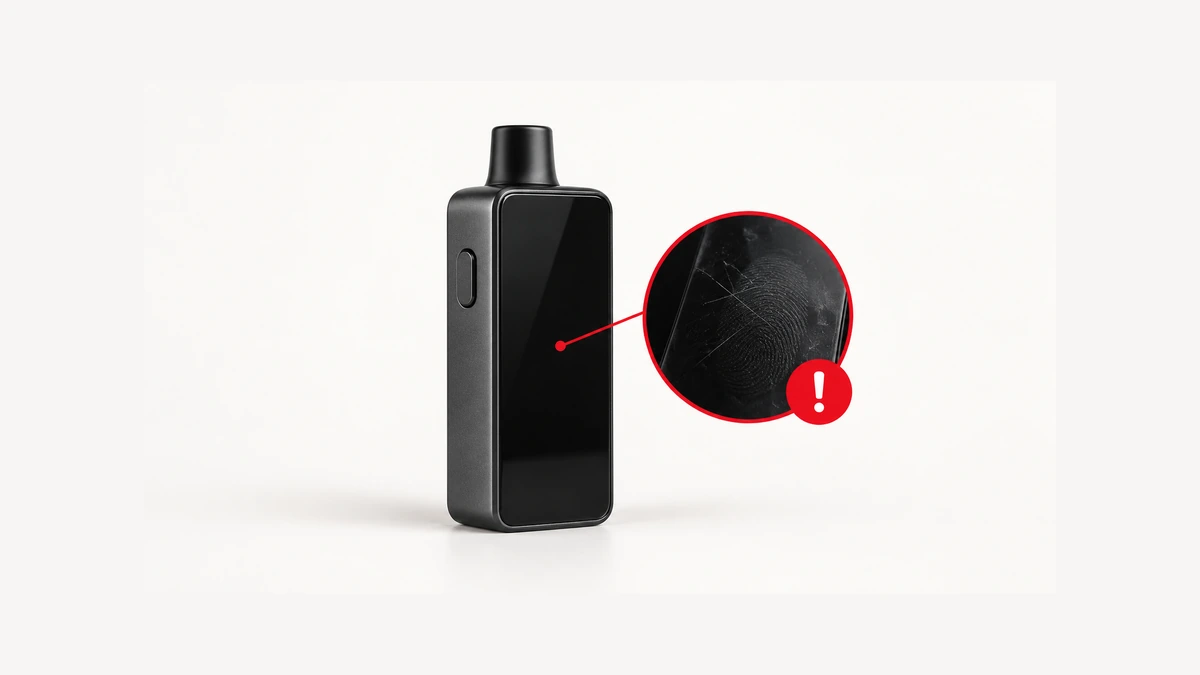
This article separates touch input, the visible display and the device’s documented control states. It addresses equipment already in an adult owner’s possession, without recommending products or explaining heating settings. The useful question is specific: what stopped responding, and what does the manual say that part should do?
🔒 1. A screen lock is not necessarily the whole-device lock
The word locked needs a noun beside it. Does the documentation mean the touch controls are locked, the activation control is locked, or both? Does a dark panel mean the display is asleep, or does it indicate that the device has shut down? An icon by itself may not answer those questions, particularly when the same small panel carries several status messages.
One historical example illustrates the distinction. The manufacturer’s G-PRIV 220 manual describes screen display, screen locking and fire-key locking separately. That is a model-specific example of different control states, not an instruction sequence for another device. Its button combinations should not be transferred to a similar-looking model.
Imagine finding a lock symbol after taking a device out of its storage sleeve. Before changing anything, compare that exact symbol with the correct manual. A description such as “the lock icon remains visible and the menu does not accept input” is more useful than “the vape is dead.” It preserves the distinction between what you can see and what you have concluded.
Do not rely on a screen lock as evidence that the entire device cannot activate. Equally, a lit display does not prove every control is available. Follow the manufacturer’s shutdown and storage instructions rather than trying combinations from an unrelated forum answer. If those instructions cannot be followed because the controls are unresponsive, that is a concrete reason to seek manufacturer support.
👆 2. Identify what you mean by a missed tap
A missed tap might mean that a clearly labelled menu item does nothing, that only one part of the panel is unresponsive, or that the whole interface stops changing. These descriptions lead to different questions. None establishes whether the cause is the touch input, the software state or another fault.
For example, an owner might say that the upper corner works but a lower menu label does not. Another might report that the labels change but the selected value does not. Recording the location and visible response is enough; there is no need to repeatedly exercise controls to create a demonstration. Avoid using an activation control as a diagnostic test.
Look at the outside with the equipment shut down according to its instructions. Is the screen area actually exposed, or does a sleeve overlap it? Is there visible damage? Has something changed since the last time the controls behaved normally? These are observations you can make without naming an internal component or guessing which sensing technology is fitted.
The distinction matters because “touch screen” is an interface description, not a specification for the sensor beneath it. Do not assume that every model uses the same technology, accepts the same accessories or supports a phone-style calibration routine. A repair suggestion that depends on those assumptions needs documentation for the exact equipment.
🧤 3. Check the cover without blaming it automatically
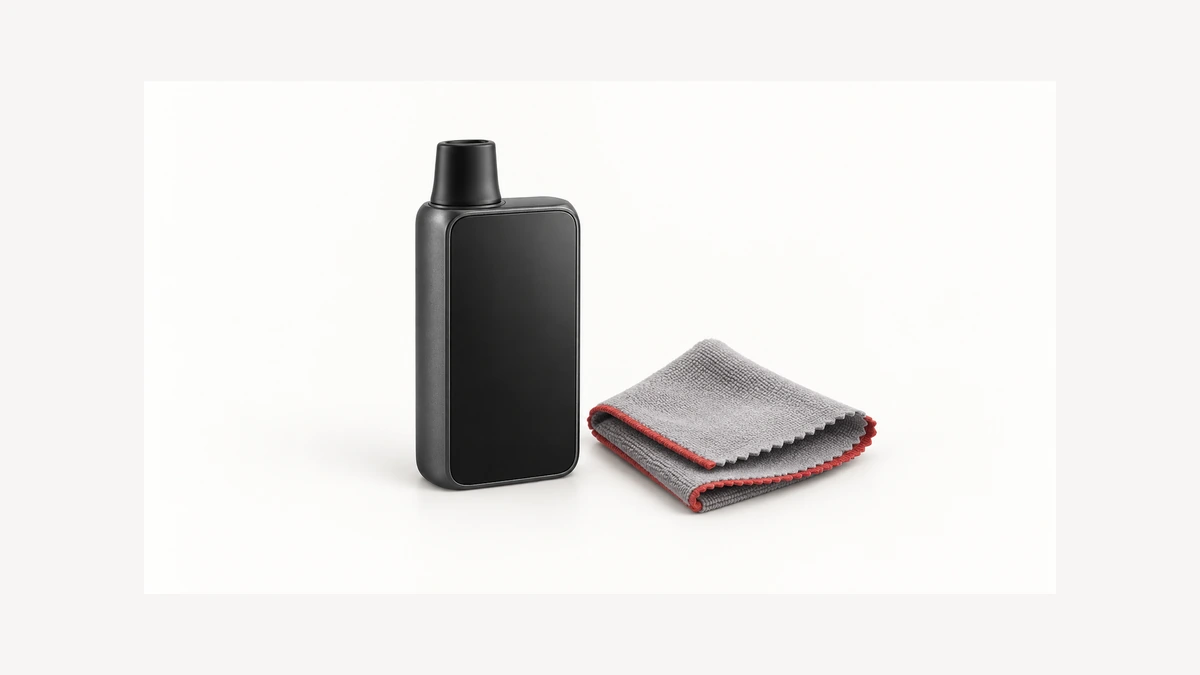
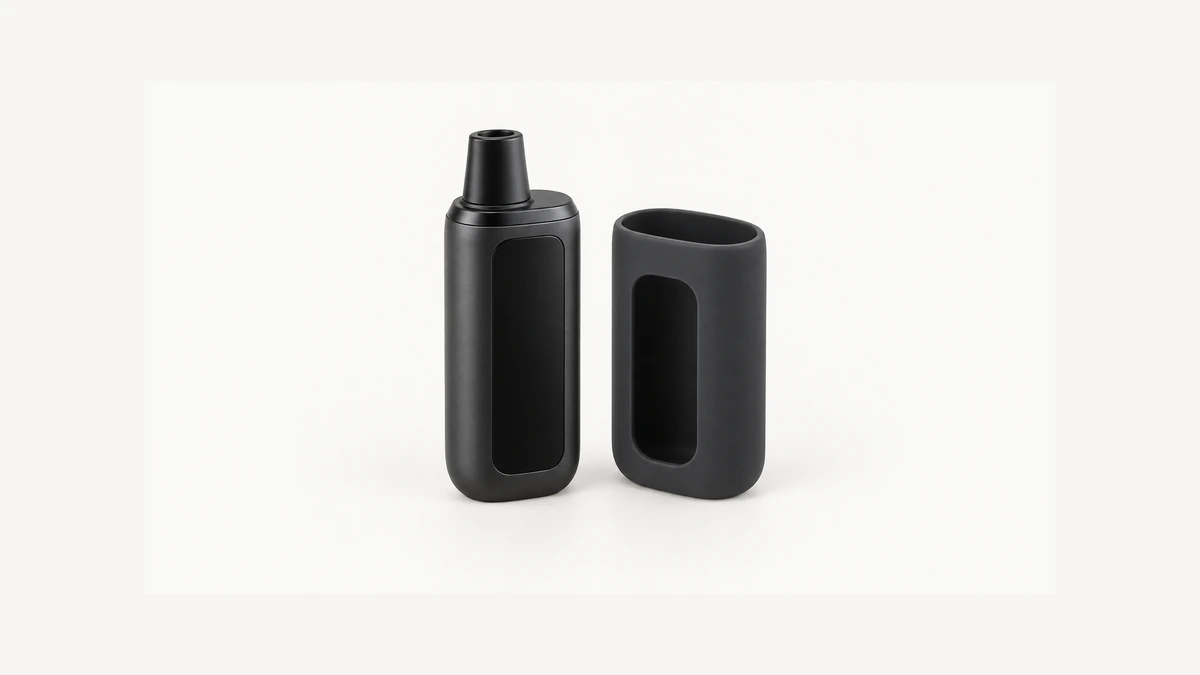
A body cover can leave a display visible while covering part of the area an owner wants to touch. A photograph taken from directly above the panel may show an overlap more clearly than a quick glance from the side. Visibility and physical access are separate fit questions.
Our explanation of body sleeves, openings and separate care covers that distinction. For a touch interface, note whether an edge sits over a labelled control, whether the sleeve has shifted and whether a strap or flap lies against the panel. This does not prove that a cover caused a fault; it identifies an external condition worth describing.
Consider a hypothetical device whose cover has recently been replaced. The owner now finds one menu corner hard to reach. The first useful fact is that the difficulty appeared after a fit change. It would be premature to conclude either that the touch panel is defective or that trimming the cover will solve it. Cutting an opening or forcing a tight accessory is not a substitute for checking the specified fit.
Do not spray cleaner into the edge of the screen or push a pointed object through a small cutout. Use only the exterior-care method documented for that device and accessory. If the cover cannot be removed in the documented way, leave that issue to the maker rather than adding a second problem while investigating the first.
🔀 4. Unexpected changes deserve a different description
A screen that does something without the intended input is different from one that ignores input. In one Reddit discussion about unexpected menu changes, the owner described switching followed by difficulty controlling the interface. Replies offered experiences and speculation, without a confirmed technical diagnosis.
The relevant reader question is how to describe an unintended response. Was a menu opening unexpectedly? Did a selection appear to change? Was the device being handled, stored or sitting untouched when the owner noticed it? Report the circumstances that are already known. Do not recreate an incident by keeping an unpredictable device operating.
A changed setting alone does not establish “ghost touch.” That label assumes a cause which the visible result may not reveal. Likewise, a single episode is not evidence of a failure rate for a brand, a screen type or all touch-controlled hardware. Keep the symptom narrower than the theory.
If controls behave unpredictably, stop using the device and follow its documented shutdown procedure where this can be done safely. Do not use an app or a different control to work around an unresolved fault. A temporarily normal-looking screen does not establish that the underlying problem has disappeared.
🖥️ 5. A readable display can still have an input problem
Owners sometimes assume that intact front glass rules out a fault. It only tells them that they cannot see a crack on that surface. It does not show whether input is being recognised or whether a menu is responding as intended.
A discussion about an intact but unresponsive panel captures this confusion. The owner asked about repair; replies mainly favoured replacement, with one suggesting a warranty claim. They did not establish which internal part had failed. The discussion is useful for identifying the question, not for supplying a diagnosis.
Keep display information separate from touch response when writing to support. “The battery symbol and menu labels are visible, but the touch controls do not respond” contains two observations. “The screen works” hides the second one. The same distinction applies when the image updates but a particular menu cannot be opened.
Our guide to information shown on a vape display can help with vocabulary, but the manufacturer’s manual remains the reference for that model’s expected behaviour. A generic guide cannot determine whether a particular panel is faulty, and an apparently plausible reading is not proof that other functions are sound.
〰️ 6. Lines, black areas and frozen images are visual symptoms
Lines across a display, a missing portion of the image and an unchanged picture should be recorded as visual symptoms. Do not turn them into a claim about a loose cable, a damaged chip or a particular type of panel failure. Those explanations require investigation beyond an exterior observation.
In a Reddit thread about lines on a screen, the owner reported that the lines changed with the displayed content and later said the manufacturer would replace the device. That outcome does not validate the speculative repair advice elsewhere in the thread.
A photograph of the symptom as first noticed may be useful if it can be taken without further operating the equipment. Include a normal view of the whole panel as well as a closer view, so the recipient can see where the affected area sits. Do not press harder, flex the housing or open it to see whether the picture changes.
For a black display, the unresolved questions are even broader. The panel being dark does not by itself prove that the device is off or that the battery is empty. Follow the documented fault and shutdown guidance instead of charging solely to see whether the screen returns. If the manufacturer’s instructions do not cover the symptom, give support the observation without guessing the cause.
📱 7. A phone interface does not settle an on-device fault
If the particular model has a companion application, note that fact in the fault report. Also note whether the application was connected when the problem was first noticed. A device without documented app support should not be treated as if a generic Bluetooth tool can inspect or repair it.
Do not assume that a phone screen and the device’s own screen are interchangeable. Their relationship depends on the manufacturer’s design. A value visible in an application does not prove that the local touch controls work, and an app connection does not certify the equipment’s condition.
For questions about the phone side, our article on companion applications, permissions and offline limits addresses a separate issue. Granting more permissions, reinstalling software or pairing another phone is not a documented repair for a physically unresponsive panel. Avoid unrelated account or permission changes while trying to identify a hardware symptom.
A useful report can simply say that the local display became unresponsive while the phone application was connected, or that no application was involved. That preserves the context for support without asserting that one interface caused the other to fail. Do not bypass unreliable local controls to continue operating the device.
📝 8. Give support a symptom they can investigate
A short, specific description usually communicates more than a long list of attempted fixes. Include the exact model and revision where available, the visible message or symbol, the part of the interface affected and when the change was first noticed. Mention known drops, moisture exposure or accessory changes accurately, without inventing a cause.
Here is an illustrative report: “The menu labels remain visible, but the lower part of the touch area no longer responds. I noticed it after removing the storage sleeve. I have stopped using the device and have not opened it.” This is an example of clear wording, not a report of a tested failure.
Keep receipt, warranty and device-identification details private when contacting support. A public forum can help name a symptom, but it cannot confirm the condition of the equipment on your desk. Avoid posting personal account details or treating a confident comment as a substitute for the maker’s response.
The useful outcome is an accurate distinction: a documented lock state, an access problem, an input symptom or a visual fault. Some cases remain unresolved until the manufacturer examines them. Preserving that uncertainty is more practical than repeatedly changing settings or attempting a repair based on a similar-looking screen.